Apple’s Orwellian quest to synchronize every ding across devices linked by a single Apple ID transforms calls into a relentless symphony of torture. To silence this digital cacophony, one must navigate the maddening labyrinth of “Calls on Other Devices” in iPhone settings and mercilessly toggle off the iPad’s participation—a bitter pill requiring device reboots as if exorcising a poltergeist. Even FaceTime settings, that sanctuary of sanity, demand sacrifice. For those perversely intrigued by Apple’s labyrinthine tyranny, there’s more to uncover.
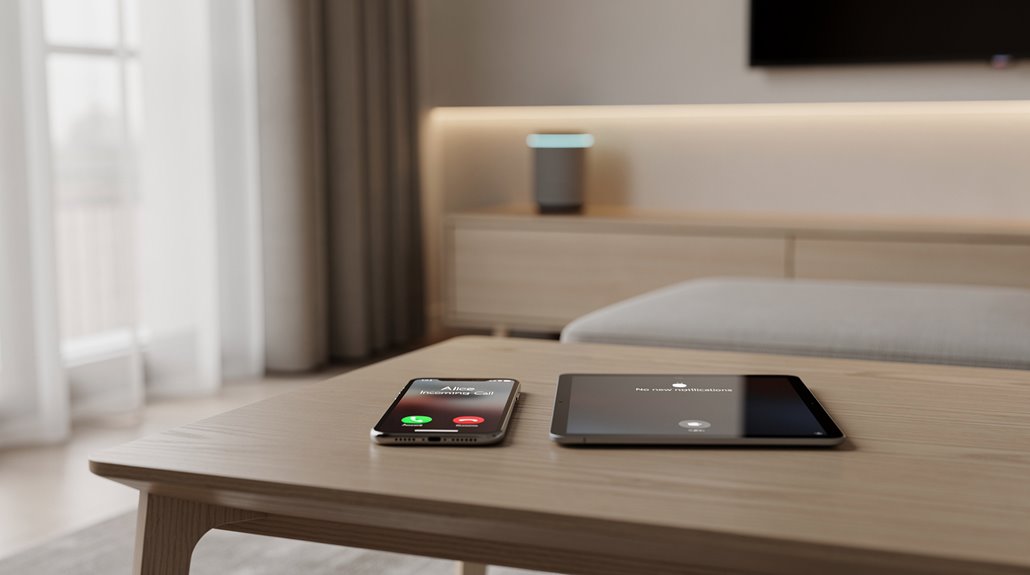
Marvel as Apple, in its boundless wisdom, unilaterally presumes ownership over every decibel invading one’s personal space by orchestrating an incessant symphony of simultaneous ringtones across iPads and iPhones.
This digital cacophony, born from the Orwellian tethering of devices via a shared Apple ID, forces the unfortunate souls who dare to wield both gadgets into an auditory nightmare. Because, naturally, when one phone rings, the orchestrated duet demands that the nearby iPad join this unwelcome chorus, as if the modern plague of constant connectivity were not already punishment enough. Convenient for many users, however, this feature enhances unified device connectivity.
Fear not, weary user, there exist exasperatingly convoluted settings designed to snatch back this shred of sanity, although one suspects Apple delights in prolonging the agony.
Brace yourself—the labyrinthine settings to reclaim peace seem crafted to test your patience and prolong the torment
A straightforward way to mute your iPad’s unsolicited participation involves diving into the iPhone’s Settings—specifically, the Phone section’s “Calls on Other Devices” submenu—where toggling off “Allow Calls on Other Devices” instantly silences every device except the iPhone. This option is found by accessing the calls on other devices menu on your iPhone.
For those who treasure their fractured peace and refuse to sacrifice all connected devices, a more surgical approach is lurking: selectively disabling the iPad’s participation by flipping off its individual switch within the same cryptic list.
Yet, the torment extends. The iPad itself can be coaxed into muteness, but only if you endure poking around its FaceTime settings to disable “Calls from iPhone,” which only appears if, in a fit of Apple-branded masochism, the device shares the exact same Apple ID.
And should this ordeal not be taxing enough, changes require the ritualistic power cycling of both devices, allowing an arbitrary 30 seconds for them to sulk back into submission, thereby ensuring that adjustments are not just suggestions but commandments enforced by reboot rites.
Verification is the final gauntlet: a test call to the beleaguered iPhone must confirm the iPad’s silence while preserving FaceTime functionality, lest one fall victim to yet another mindless default that violates all semblance of user autonomy.
Hence marches on the tragedy of Apple’s architectural hubris—smart devices made less intelligent by design.
Frequently Asked Questions
How Do I Stop Facetime Notifications on My Ipad?
To stop FaceTime notifications on an iPad, open Settings, navigate to Notifications, select FaceTime, and toggle off “Allow Notifications,” ensuring no alerts or sounds appear for incoming FaceTime calls on the device.
Can I Disable Iphone Call Alerts on Other Apple Devices?
Yes, users can disable iPhone call alerts on other Apple devices by adjusting settings in “Calls on Other Devices.” They may toggle the feature off entirely or deselect specific devices to stop call notifications while retaining functionality elsewhere.
Will Turning off Handoff Affect Other App Syncing?
Turning off Handoff does not affect syncing of other apps. iCloud synchronization remains active independently, ensuring data like photos, emails, and calendar events continue syncing across devices without interruption despite Handoff being disabled.
How to Stop Text Messages From Syncing to My Ipad?
To stop text messages from syncing to the iPad, disable iMessage in iPad Settings under Messages, turn off Messages syncing in iCloud settings, and make sure Text Message Forwarding is disabled on the iPhone to prevent cross-device message sharing.
Can I Customize Ring Tones Separately for Iphone and Ipad?
Yes, the iPhone and iPad allow separate ringtone customization through their respective Settings menus. Each device maintains independent sound settings, enabling distinct ringtones without automatic synchronization between the two devices.
References
- https://www.youtube.com/watch?v=vG7EI3da1t4
- https://www.youtube.com/watch?v=ehlI8zYrJmE
- https://appleinsider.com/inside/ipados/tips/how-to-stop-iphone-calls-and-facetime-alerts-from-appearing-on-your-ipad
- https://discussions.apple.com/thread/254555369
- https://www.youtube.com/watch?v=xVNhBALMOBc
- https://support.apple.com/guide/ipad/phone-calls-text-messages-ipad-ipadf97892b2/ipados
- https://www.youtube.com/watch?v=Di6TvcVMA6g
- https://support.apple.com/guide/facetime/change-or-turn-off-notifications-fctmb2a13557/mac
- https://www.youtube.com/watch?v=F7saH2iKwxI
- https://support.apple.com/guide/ipad/stop-mute-and-change-notifications-ipad99acb5bb/ipados